
How to build a touchscreen timeline exhibit without a developer
A step-by-step guide to planning, writing, and publishing an interactive timeline for a museum or historical society, from picking your moments to testing it with visitors.
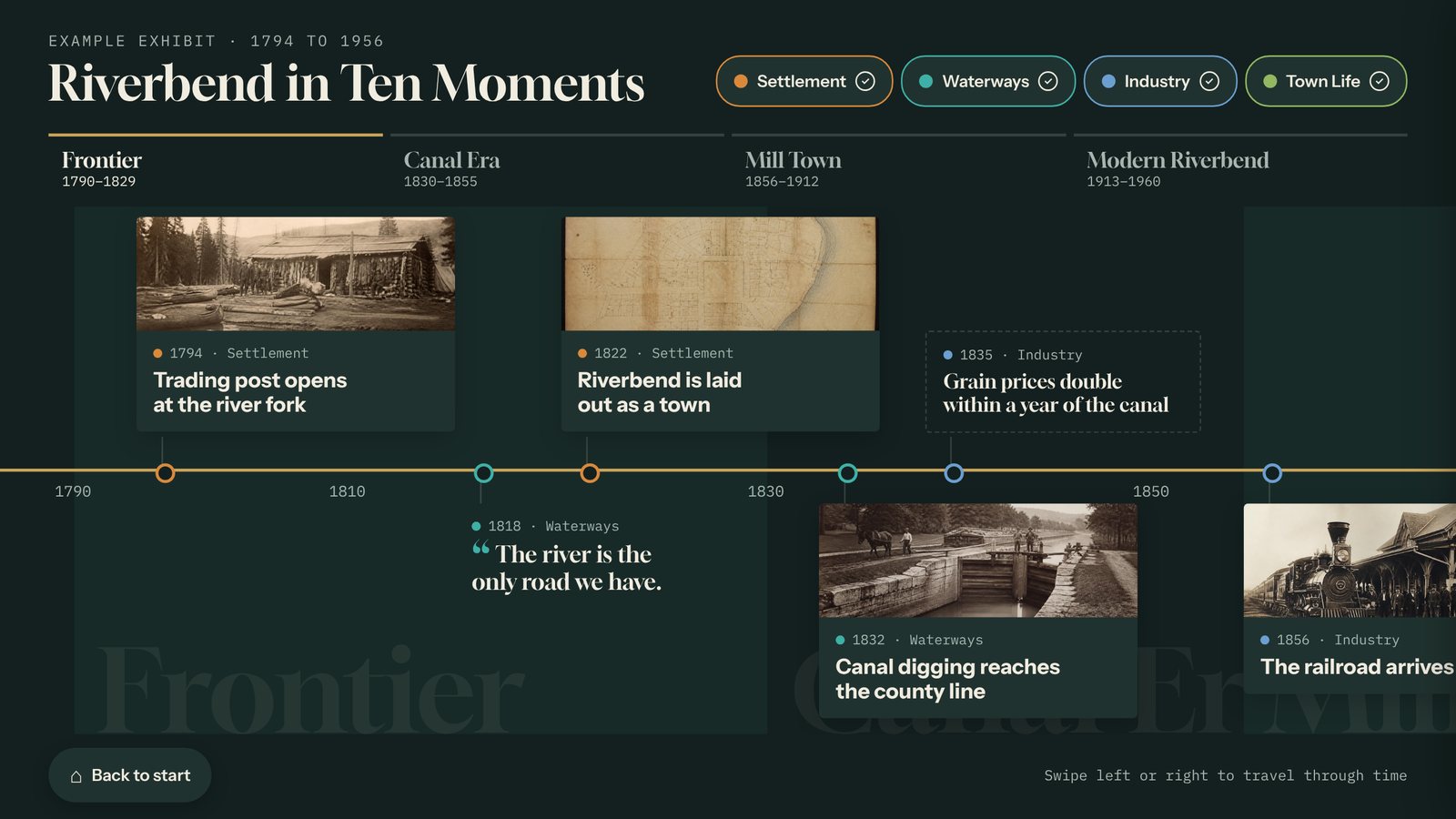
A timeline is the most requested touchscreen exhibit in history museums, and for good reason. It turns a wall of dates into something visitors can swipe through, filter, and tap to read more. It’s also one of the easiest interactive exhibits to build yourself, if you plan the content before you open any software.
Here’s the process we recommend, start to finish.
1. Decide what the timeline is about
A good timeline answers one question. “The history of our county” is a topic. “How the canal changed Riverbend” is a story. The second one is easier to choose moments for, easier to write, and more interesting to swipe through.
Write your question down in one sentence. Every card you add should help answer it.
2. Pick your moments
For most exhibits, 15 to 40 moments is the sweet spot. Under 10 feels thin. Over 50 gets hard to browse on one screen, even with filters.
Make a simple list with three columns: date, title, and why it matters. Don’t write the full text yet. Just get the list right. Then cut anything that doesn’t connect to your one-sentence question.
Mix up the kinds of moments, too. A run of ten “building was constructed” entries in a row feels like a list. A few people, a few turning points, a quote, and a surprising number feel like a story.
3. Group them into eras and categories
Grouping is what makes a long timeline easy to explore.
- Eras are named stretches of time, like Frontier, Canal Era, or Mill Town. They run across the top of the timeline so visitors can jump straight to a period.
- Categories are themes that cut across time, like Waterways, Industry, or Town Life. Each one gets a color, and visitors can filter by them.
Three to five eras and three to six categories is plenty. More than that and the buttons start to crowd the screen.
4. Write short
This is the step that makes or breaks the exhibit. Visitors read standing up, often with a kid tugging their sleeve or someone waiting for a turn.
- Titles: a few words that say what happened. “Canal digging reaches the county line” beats “1834.”
- Text: 40 to 80 words. One idea per card.
- Lead with the interesting part. Put the surprising fact or the human detail first, and the context second.
- Read it out loud. If you run out of breath, it’s too long.
Not every moment needs a photo and a paragraph. In Tellcase, a card can be a photo card (a picture and text that opens when tapped), a short entry (just a title on the timeline), a fact (a big number), or a quote. Mixing them keeps the timeline from feeling repetitive.
5. Gather your images
Pick one strong image per photo card. Some tips:
- Crop tight. A detail of a document reads better on screen than the whole page.
- Size them right. About 1920 pixels on the long side is plenty for a standard screen. For a 4K screen, use about 3840.
- Write alt text for every image, describing what’s in it, for visitors using screen readers when the exhibit is on your website.
- Credit your sources. Each card has a credit line. Note where the image came from as you go, not at the end.
6. Build it
This is the quick part once your content is ready. In Tellcase:
- Pick the Timeline template. It opens with example cards, so you can see how everything fits before you change anything.
- Bring in your cards. Replace the examples one at a time, or download the spreadsheet template, fill in one row per card, and import the whole file at once (Excel or CSV). Then add a photo to each card.
- Add your eras and categories, and give each category a color.
- Set your look. Upload your logo and pick your colors and fonts so it matches your galleries.
- Choose landscape or portrait to fit your screen.
- Preview, then Publish.
7. Test it with real visitors
Before the screen goes on the floor, put it in front of five people who have never seen it. Hand them nothing, say nothing, and watch.
- Do they know they can touch it?
- Do they figure out how to move through time?
- Which cards do they open? Which do they skip?
- Do they stop reading halfway through a card?
Fix what trips them up. It’s almost always too much text or a button that isn’t obvious.
8. Set it and keep it fresh
A few settings to check before opening day:
- Welcome screen and reset. When nobody’s touched the screen for a while (you choose how long), Tellcase returns to the welcome screen so the next visitor starts fresh.
- How the screen gets updates. A connected screen picks up changes by itself. An offline package is updated with a USB stick.
Once it’s live, the timeline doesn’t have to be finished. Staff and volunteers can fix a date, swap in a better photo, or add a card when a new donation comes in, from any browser.
The short version
- Write your one-sentence question.
- List 15 to 40 moments.
- Group them into a few eras and categories.
- Keep each card to 40 to 80 words.
- Gather one strong, credited image per photo card.
- Build it from a template.
- Watch five strangers use it, then fix what confuses them.
If you need help picking a screen for it, see what you need to run a touchscreen kiosk.
Quick answers
How many events should a touchscreen timeline have?
Most museum timelines work best with 15 to 40 moments. Fewer than 10 feels thin, and more than 50 gets hard to browse on one screen. If you have more, group them into eras and categories so visitors can jump around.
How much text should each timeline card have?
Aim for a title of a few words and 40 to 80 words of text. Visitors read standing up, often with someone waiting behind them, so short labels get read and long ones get skipped.
Can I import timeline events from a spreadsheet?
Yes. In Tellcase you can download a spreadsheet template, fill in one row per card with a title, date, category, and text, and import the whole file as Excel or CSV. Then add photos to each card.
Do I need a developer to make an interactive timeline?
No. With a template-based tool like Tellcase, you replace the example cards with your own, set your colors and logo, and click Publish. If you can fill in a spreadsheet, you can build a timeline.