
How to run an interactive exhibit with no internet
Plenty of galleries, historic buildings, and trade show halls have no reliable Wi-Fi. Here's how a touchscreen exhibit can run fully offline, how updates get there, and what to plan for.
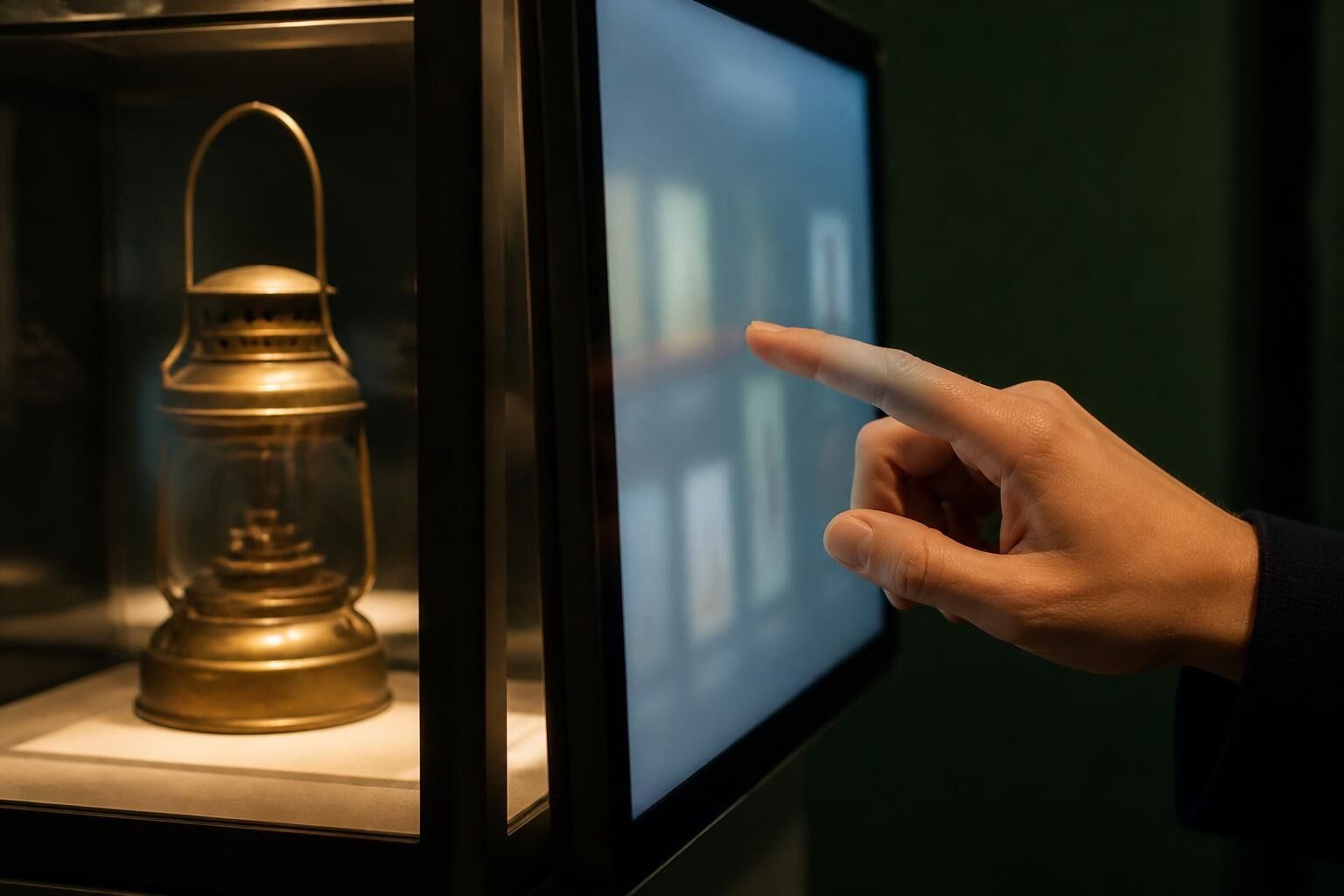
A lot of the best places for an exhibit are the worst places for Wi-Fi. Stone-walled historic houses. Basement galleries. Outdoor shelters at a trailhead. Convention halls where the booth internet costs more than the booth.
The good news: a touchscreen exhibit doesn’t need the internet to run. It needs the internet, at most, to get updates. Once you separate those two things, the choice gets simple.
Two ways a screen can run
Connected screen. The kiosk computer is on Wi-Fi or a network cable. You edit the exhibit from your office and click Publish, and the screen picks up the change by itself within a couple of minutes. If the connection drops, the screen keeps playing a saved copy and catches up once it’s back.
Offline package. The kiosk computer never touches the internet. You download the whole exhibit as a single file, copy it over with a USB stick, and it plays full screen on its own. To update, you copy over a new one.
Both run the same exhibit, look the same, and respond to touch the same way. The only difference is how updates get there. We go deeper on this on our how it runs page.
When to choose offline
Offline is the right call when:
- There’s no network at the spot, or it’s too unreliable to trust
- IT won’t allow a public kiosk on the building network
- The exhibit rarely changes, like a permanent gallery that gets updated once or twice a year
- It travels, like a traveling exhibit or a trade show booth that moves from hall to hall
If you’ll be making frequent changes, like rotating a featured object every month, a connected screen saves a lot of walking. And remember a connected screen already handles a flaky connection fine. Offline is for when there’s no connection at all, or you don’t want one.
How an offline update works
With Tellcase, it takes a few minutes:
- Edit from anywhere. Make your changes from any computer with internet, like the one at your desk or at home.
- Download the package. Click Download offline package. You get one file with the whole exhibit inside, photos, videos, fonts, and all.
- Copy it over. Put it on a USB stick and copy it to the kiosk computer.
- Open it. Unzip it and start it in full-screen kiosk mode. The package includes a short instruction file with the exact steps for Mac and Windows.
Keep the old one. Leave the previous package folder next to the new one until you’ve checked the update on the screen. If something looks off, switching back is just opening the old copy.
Plan for these four things
1. Startup after a power cut. Kiosks lose power. Cleaning crews unplug things. Set the computer to turn back on after a power failure, log in on its own, and open the exhibit automatically. On Windows, a kiosk shortcut in the Startup folder does it. On a Mac, a small startup item in Login Items does the same. Whoever sets up the computer can do this once, and then a power blip fixes itself.
2. Large videos. Offline packages carry everything with them, so a few long 4K videos make for a big download. That’s fine, just give yourself time and a USB stick with room to spare.
3. A simple update routine. Label your USB stick. Note the date of the package on it. Decide who’s allowed to update the kiosk. A one-paragraph instruction sheet taped inside the kiosk door saves a lot of phone calls.
4. Sign-ups and leads. If your exhibit collects names and emails, like a trade show lead capture screen, an offline kiosk saves entries on the computer and sends them to your account the next time it has internet. Plan to connect it at some point after the event so the entries come through.
A checklist before opening day
- Exhibit plays full screen with no address bar or buttons showing
- Touch works across the whole screen, including the corners
- The screen returns to its welcome screen after a visitor walks away
- Computer restarts and reopens the exhibit after you pull the plug and plug it back in
- Previous package saved, and the USB stick labeled
- Someone on staff knows how to do the next update
Unplug it once on purpose before visitors arrive. If it comes back on its own, you’re ready.
Need help picking the hardware? See what you need to run a touchscreen kiosk.
Quick answers
Can a touchscreen exhibit run without internet?
Yes. With Tellcase you can download the whole exhibit as one offline package, copy it to the kiosk computer with a USB stick, and it plays full screen with no internet at all.
How do I update an offline kiosk?
Make your changes from any computer with internet, download a fresh offline package, and copy it to the kiosk with a USB stick. Keep the previous package next to it so you can switch back if needed.
What happens if the Wi-Fi drops on a connected kiosk?
A connected Tellcase screen saves a copy of the exhibit on the kiosk computer, so it keeps playing through a dropped connection and picks up any new changes once it reconnects.
Can an offline kiosk still collect leads or sign-ups?
Yes. Entries are saved on the kiosk computer and sent to your account the next time that computer has internet, so plan to connect it at some point after the event.