
What you need to run a touchscreen kiosk in a museum
A plain-language checklist of the hardware behind a museum touchscreen exhibit, from the computer and the screen to mounts, power, and what to ask your fabricator.
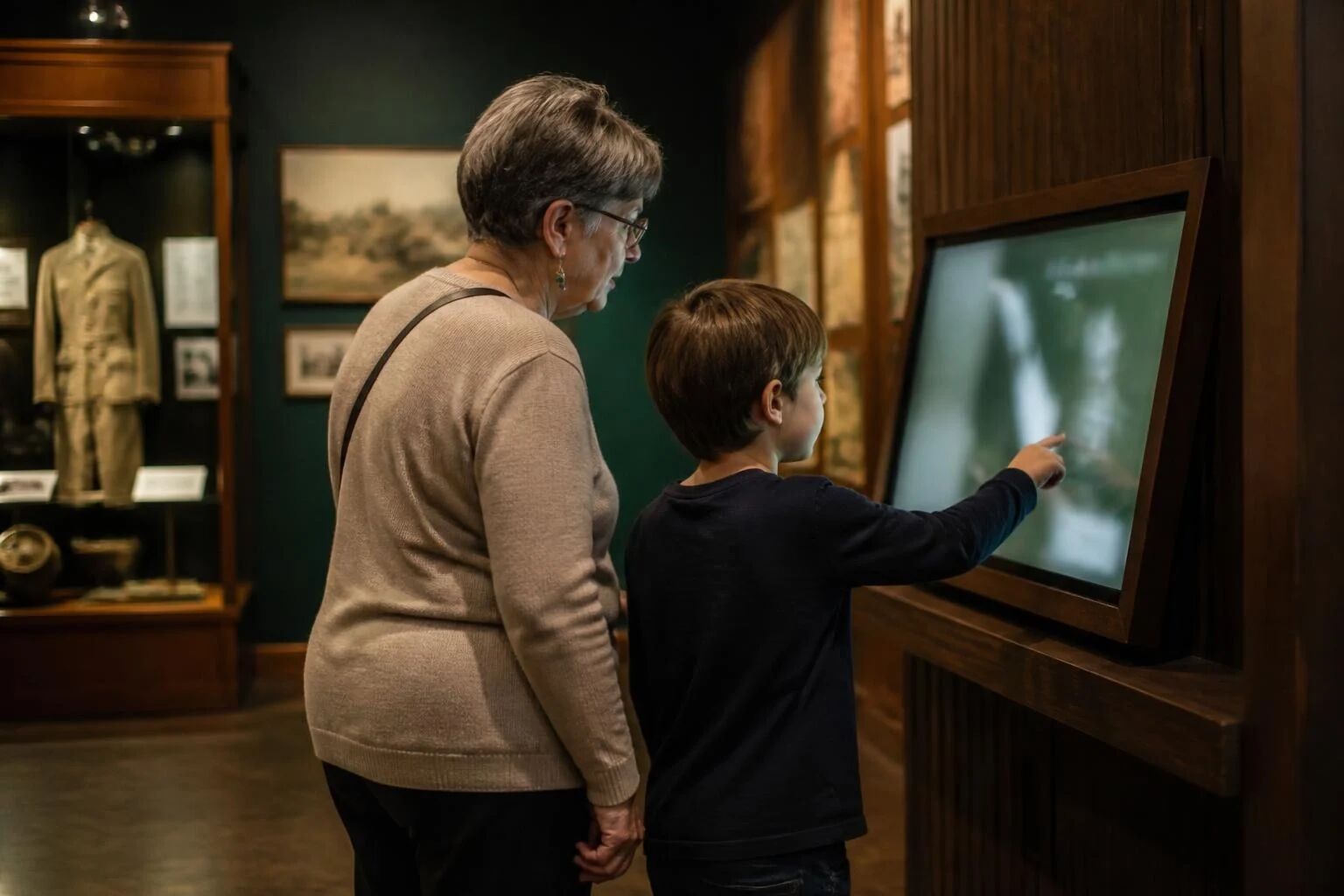
A touchscreen exhibit is three things working together: a screen visitors touch, a small computer that runs the exhibit, and the software your staff use to put content on it. The hardware part is less complicated than it looks. Here’s what you actually need, and the questions worth asking before you buy.
The short checklist
- A commercial touchscreen (or a commercial display with a touch overlay)
- A small computer, like a Mac mini or a compact Windows PC
- A mount, stand, or kiosk enclosure that hides the cables and the computer
- Power at the location, and ideally a network connection (optional)
- Exhibit software that runs full screen and that your staff can update
That’s it. Everything else is a choice about size, placement, and how the screen gets updates.
The screen
This is where most of the budget goes, and where the most important choices are.
Commercial vs. consumer. A living room TV is designed for a few hours a day. A commercial display is designed to run all day, every day, often for years. Commercial screens also tend to have lockable menus (so a curious visitor can’t change the input), mounting points for kiosks, and warranties that cover public use. Many consumer warranties don’t.
Touch type. You’ll see two common kinds:
- Projected capacitive (PCAP) works like a phone. A sheet of glass, very responsive, handles multiple fingers. It’s the usual pick for kiosks and wall screens.
- Infrared (IR) uses a frame of invisible light beams around the edge. It’s often cheaper at large sizes, but a sleeve or a bit of dust on the frame can register as a touch.
If you’re unsure, PCAP is the safe default.
Size. Think about how many people will use it at once.
| Size | Good for |
|---|---|
| 22 to 32 inches | One person at a kiosk stand, a gallery rail, or a reading nook |
| 32 to 43 inches | One or two people at a wall or kiosk. The most common choice. |
| 55 inches and up | Small groups, touch tables, lobby walls |
Resolution. A 1080p screen looks sharp at kiosk distance up to about 43 inches. 4K is worth it for big screens or when visitors will zoom into detailed photos, like a map or an artifact close-up. Tellcase lays out every template so text stays crisp on either one; for 4K screens, upload photos about 3840 pixels on the long side.
Brightness. Most indoor gallery screens are fine at standard brightness. If the screen faces a window or sits in a sunny atrium, ask for a higher-brightness model and an anti-glare finish.
The computer
The exhibit itself runs in a web browser, full screen, with no address bar or buttons. That means you don’t need a powerful machine. You need a reliable, quiet one.
- Mac mini. Small, silent, and dependable. Easy to tuck behind a screen or inside a kiosk.
- Compact Windows PC. Mini PCs and small business desktops work well and give you more choice of sizes and prices.
Either way, look for a solid-state drive, enough storage for your photos and videos, and a way to keep it out of reach of visitors. Set it to start up after a power outage (a setting in macOS Energy settings or the PC’s BIOS), so a power blip doesn’t leave a dark screen.
Tellcase runs on both today. Support for BrightSign players, a popular small media player for museums, is coming soon.
The mount or enclosure
Your fabricator or exhibit designer usually handles this part, and it’s what makes the screen look like part of the exhibit instead of a TV on a wall. Options include:
- A wall mount with the computer hidden behind the screen or in a nearby cabinet
- A freestanding kiosk in landscape or portrait
- A built-in casework opening, flush with the exhibit graphics
- A touch table for groups
Whatever you pick, plan for ventilation (screens and computers make heat) and service access. Someone will eventually need to reach the power button, a USB port, or the network cable without taking the whole exhibit apart.
Height matters. For standing adults, the center of the screen usually lands around 48 to 54 inches from the floor. If you want it to work for kids and wheelchair users, lower it and tilt it slightly back, and keep the important buttons in the lower half of the screen.
Power and network
The screen and computer each need power. Plan for a dedicated outlet inside the enclosure rather than an extension cord across the floor.
A network connection is helpful but not required. With a connection, your staff can update the exhibit from the office and the screen picks up changes by itself. Without one, you update the exhibit with a USB stick. We wrote a whole guide on running an exhibit with no internet if that’s your situation.
The software
This is the part your team will live with every day, so it deserves as much thought as the screen. Ask:
- Can our staff update it themselves, without calling a developer?
- Does it keep running if the Wi-Fi drops?
- Does it reset itself when a visitor walks away, so the next person starts fresh?
- Can it run in portrait and landscape?
- Will it look like our brand, with our logo, colors, and fonts?
Tellcase was built around exactly those questions. You pick a template, like a timeline, story gallery, or object explorer, replace the example cards with your own, and publish. See how screens run for the details.
Questions to ask before you buy
- Who will update the content, and how often?
- Is there power at the spot? A network connection?
- Will the screen face a window?
- Landscape or portrait? One visitor at a time, or groups?
- Who services the computer if something goes wrong?
- Is the screen rated for all-day use, and does its warranty cover public spaces?
Answer those six and you’ll know what to order. If you’re working with a fabricator, hand them this list. They’ll thank you.
Quick answers
What computer do I need for a museum touchscreen?
A small, quiet computer like a Mac mini or a compact Windows PC is plenty for a touchscreen exhibit. It sits behind or inside the kiosk and runs the exhibit full screen in a web browser.
Can I use a regular TV for a museum kiosk?
You can, but a commercial display is the safer choice. Commercial screens are built to run all day, have lockable menus and mounting points, and their warranties usually cover public use. A TV also needs a separate touch overlay.
What size touchscreen is best for a museum exhibit?
32 to 43 inches suits one or two people at a kiosk or wall. 55 inches and up suits a group or a touch table. Mount it so the center of the screen sits around 48 to 54 inches from the floor for standing visitors.
Do I need a 4K touchscreen?
Not usually. A 1080p screen looks sharp at kiosk distance up to about 43 inches. 4K is worth it on larger screens or when visitors will zoom into detailed photos. Tellcase supports both.