
How to plan a digital hall of fame for your school
A practical guide for athletic directors, alumni offices, and boosters who want a touchscreen hall of fame, from choosing honorees to keeping it current every year.
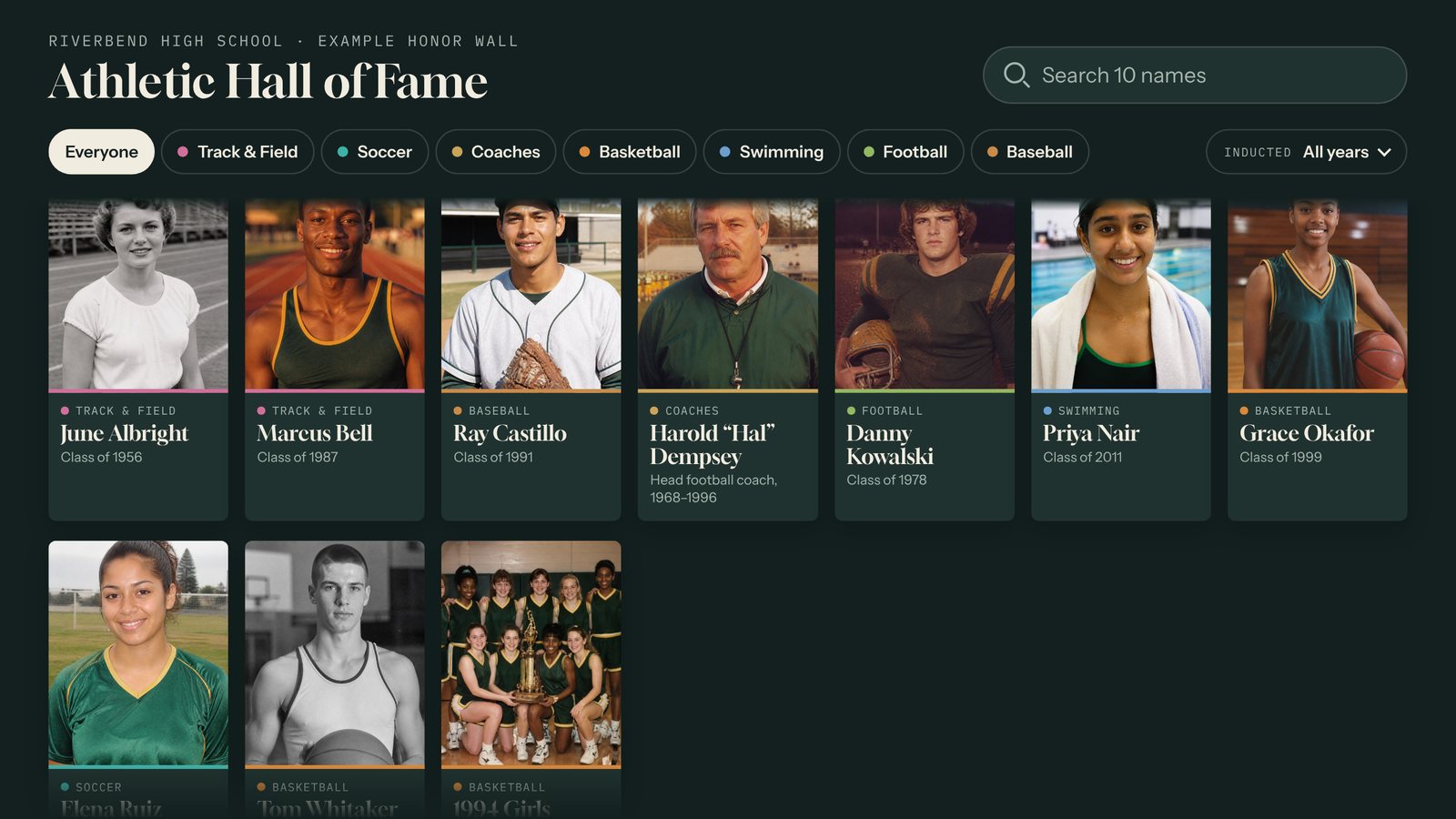
Most school halls of fame start as a hallway of plaques. They look great on induction night. Then the wall fills up, the oldest names fade, and nobody remembers which year the 1987 relay team won state.
A touchscreen hall of fame fixes the space problem and the story problem at the same time. Every honoree gets room for a photo, a real bio, and highlights, and the wall never runs out of room. Here’s how to plan one so it’s still current five classes from now.
1. Decide who belongs on it
Start with the categories you already honor. Most schools land on some mix of:
- Athletic hall of fame: athletes, coaches, and championship teams
- Distinguished alumni: graduates known for their careers or service
- Faculty and staff: long-serving teachers, coaches, and administrators
- Military honor roll: graduates who served
You can keep these on one screen with filters, or give each its own wall. If you’re starting from a stack of old plaques, put in everyone already inducted first. Families notice when a name goes missing.
2. Pick the filters visitors will actually use
Visitors walk up looking for someone: a parent, a coach, a name they heard at a game. Two tools get them there fast:
- Name search. An on-screen keyboard lets visitors type a last name and jump straight to that person.
- Filters. Sport and decade are the usual pair for athletics. For alumni walls, career field or class year works well.
Keep the filter list short. Six to ten sports and a decade selector cover most halls of fame. If a category has only one honoree, fold it into a broader one.
3. Gather the same few things for every honoree
Consistency is what makes a hall of fame look professional. Before anyone opens software, build a simple spreadsheet with one row per honoree:
- Full name, as it should appear
- Class year or induction year
- Sport, team, or category
- A short bio of 60 to 120 words
- Three to five highlights, like “State champion, 400 m, 1991” or “All-conference, three years”
- One good photo, ideally a portrait or an action shot from their era
- Optional: a video clip from the induction ceremony or a game
The yearbook, the local paper’s archive, and the induction program are your best sources. In Tellcase you can import that spreadsheet straight into the Honor Wall template, then add highlights and video to each honoree. For tips on writing the bio, see how to write an honoree profile people actually read.
4. Find the photos before the deadline
Photos are always the slowest part. A few ways to speed it up:
- Scan yearbook portraits at 600 dpi or higher
- Ask honorees and families directly. Most are thrilled to send one.
- Check the athletic department’s old team photos and crop individuals
- Use a team photo for teams, not a collage of headshots
If you can’t find a photo for someone yet, add them anyway and swap the photo in later. A name with a bio beats a missing name.
5. Put it where people already wait
The best spot is somewhere people stand around: the gym lobby, outside the trophy case, the hallway by the main office, or the entrance to the stadium. Plan for:
- A commercial touchscreen, usually 43 to 55 inches for a hallway kiosk
- A small computer like a Mac mini or a compact Windows PC behind it
- Power, and network if it’s available. It doesn’t have to be.
Our kiosk hardware checklist walks through screens, mounts, and power in more detail. It’s written for museums, but a school hallway needs the same things.
6. Make it look good from across the hall
When nobody is touching it, the screen should still be working. In Tellcase, the Honor Wall template has an idle screen that shows your welcome message with the wall gently moving behind it, so the screen catches eyes during passing periods and before games. It also clears the last visitor’s search, so the next person starts fresh. Use your school colors and logo so it looks like it belongs in the building.
7. Plan the yearly update now
The real advantage over plaques is that adding a class takes minutes, not a work order. Write down who does it and when:
- Who: the person who runs the induction ceremony
- When: the week after induction night, while the bios and photos are fresh
- How: add each new honoree, preview, and publish. A connected kiosk updates on its own. An offline kiosk gets a fresh package on a USB stick.
That’s the whole plan. Start with the honorees you already have, keep every profile consistent, and give one person the job of adding each new class. The wall takes care of the rest.
Curious what this looks like on a real screen? Join early access and we’ll walk you through the Honor Wall template.
Quick answers
What is a digital hall of fame?
A digital hall of fame is a touchscreen display that replaces or sits beside traditional plaques. Visitors browse honorees, search by name, filter by sport or decade, and tap a name to see a photo, a short bio, career highlights, and sometimes video.
How many honorees can a digital hall of fame hold?
Far more than a wall of plaques. A touchscreen has no shelf space to run out of, so a school can add every new class of inductees each year without building anything. Filters and name search keep a large list easy to browse.
Who should keep a school's digital hall of fame up to date?
Whoever already runs the induction, usually the athletic director, alumni office, or a booster club volunteer. With a template-based tool like Tellcase, adding an honoree is like filling in a form, so no developer is needed.
Does a touchscreen hall of fame need internet?
No. A Tellcase kiosk can run from an offline package copied over on a USB stick. If the kiosk is on the school network, new inductees show up on their own after you publish.