
Accessible touchscreen exhibits: a practical checklist
How to plan a touchscreen interactive that more visitors can use, from reach and screen height to contrast, text size, captions, and timeouts. A practical checklist for museums, schools, and lobbies.
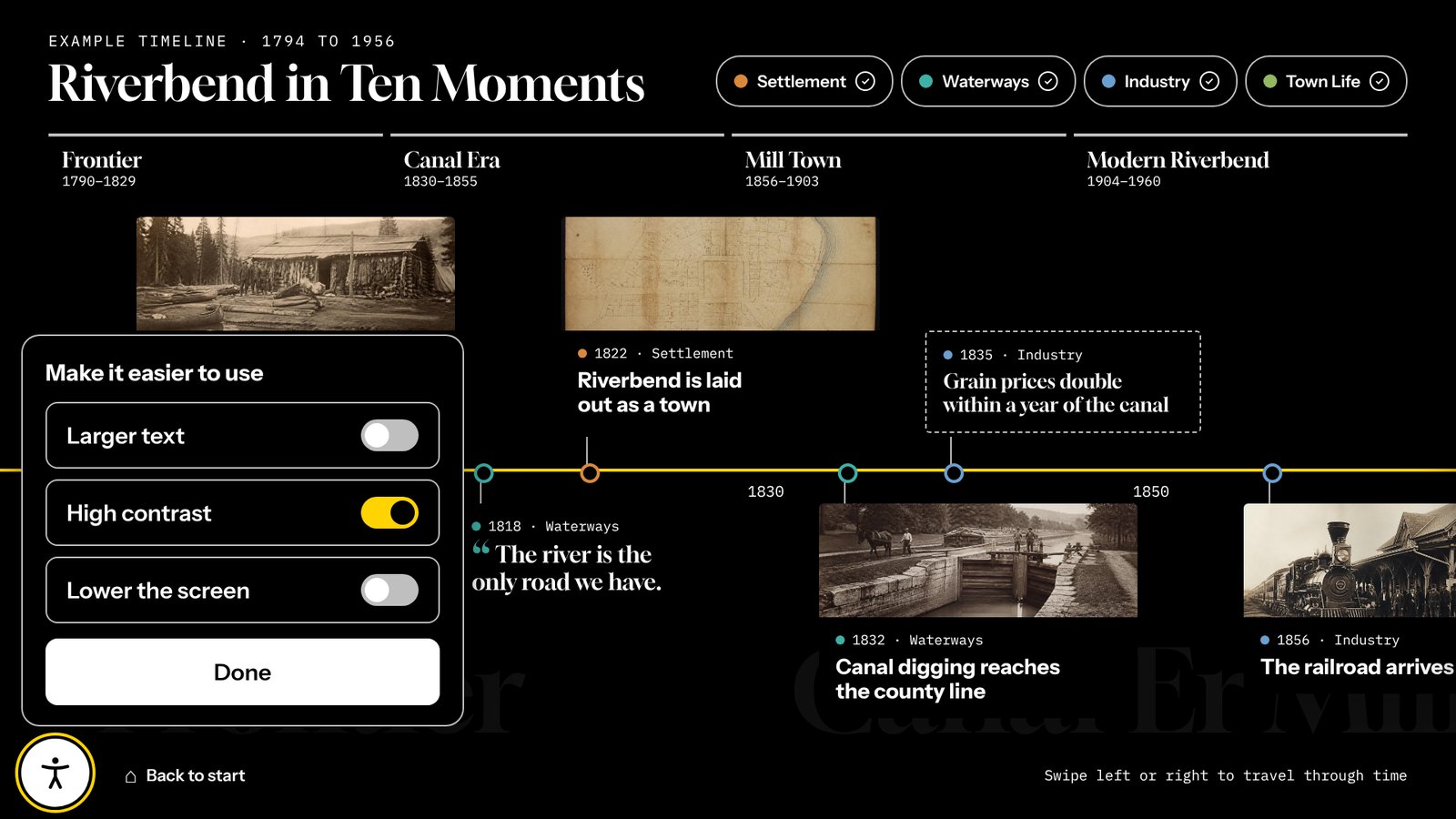
Most accessibility problems with touchscreen exhibits aren’t caused by the software. They’re caused by small decisions made early: a screen mounted at eye level for a standing adult, white text on a photo, a video with no captions, a timeout that kicks someone back to the start while they’re still reading.
The good news is that most of these are easy to get right if you plan for them from the start. Here’s a practical checklist, in the order you’ll make the decisions.
This is planning advice, not legal advice. The standards that apply to you depend on who you are and where your exhibit is, so check with your own accessibility lead or counsel for anything formal.
1. Mount it where everyone can reach it
Reach is the one you can’t fix later without a drill. The 2010 ADA Standards for Accessible Design set an unobstructed forward reach range of 15 to 48 inches above the floor. Anything a visitor has to touch should sit inside that range.
- Leave clear floor space in front of the screen, at least 30 by 48 inches, so a wheelchair user can pull up.
- Watch the top of tall screens. A 55-inch portrait screen easily runs above 48 inches. That’s fine for photos, but keep buttons and menus low.
- Tilt helps. A screen angled back toward the visitor is easier to see from a seated position and easier to reach.
- Mind the casework. A deep counter or ledge in front of the screen shortens how far a visitor can reach.
If you’re working with a fabricator, put the reach range in the drawings, not just the spec sheet. Our kiosk setup guide suggests a bottom-edge height for common screen sizes.
2. Give visitors a way to make it easier
No single setting works for everyone. A visitor with low vision wants bigger text. Someone else needs more contrast. A visitor using a wheelchair may want everything lower. The simplest answer is a visible accessibility button on every screen that changes the experience for that visitor, then resets when they walk away.
In Tellcase every interactive has one, in the lower-left corner. It offers three options:
- Larger text makes the reading text bigger across the whole interactive.
- High contrast switches to black and white with a bright yellow accent.
- Lower the screen shrinks the whole interactive toward the bottom of the screen, so the top of a tall screen is no longer out of reach.
When the visitor leaves and the screen returns to its welcome page, everything goes back to normal for the next person.
3. Write for a standing, busy reader
Accessible writing is mostly just good exhibit writing.
- One idea per card. A headline and two or three short sentences.
- Plain words. Write for a curious 12-year-old, not a specialist.
- Big text. Body text on a kiosk should be noticeably larger than on a phone. If you have to lean in, it’s too small.
- Front-load the point. Many visitors read the first line and move on.
Our guide to writing honoree profiles has a formula that works for any short card.
4. Check contrast, especially on photos
The usual benchmark is WCAG 2.1 level AA: a contrast ratio of at least 4.5 to 1 for regular text and 3 to 1 for large text. Brand colors often fail this, and text over photos fails it constantly.
- Put text on a solid panel, not directly on a photo.
- Test your brand colors before you build. Tellcase warns you in the Brand settings when your text and background colors are too close.
- Don’t use color alone to carry meaning. Pair a category color with a label.
5. Caption every video
Galleries are loud, lobbies are louder, and many visitors are Deaf or hard of hearing. Captions help all of them, and they help everyone else who would rather not turn the sound up.
- Get a caption file (.vtt or .srt) from your video editor or a captioning service.
- In Tellcase, add it to the video in your Media library. Captions show on by default, in large text on a dark band, on kiosks, embeds, and offline packages.
- Keep narration-only information out of videos, or repeat it in the card text.
6. Describe every image
Alt text is a short description a screen reader speaks aloud. It matters most for the web version of your interactive, and it’s good practice everywhere. Tellcase asks for a description every time you upload a photo.
Describe what matters about the image in one sentence: “Workers digging the canal lock by hand, 1832,” not “photo.”
7. Make targets big and timeouts kind
- Big buttons. Aim for touch targets of at least 44 by 44 pixels, with space between them. Shaky hands and gloves both need room.
- No tiny gestures. Anything you can swipe, you should also be able to tap.
- Ask before resetting. Kiosks need to return to the start when a visitor walks away, but a slow reader shouldn’t lose their place. Tellcase asks “Still there?” with a countdown before it resets, and one tap keeps going.
- Go easy on motion. Avoid flashing, and keep animations gentle.
8. Test with real people
The best check costs nothing. Before opening day, ask a few people to try the interactive: someone seated, someone who wears reading glasses, someone who uses a screen reader on their phone. Watch where they hesitate. Then fix the content, not just the settings.
A quick checklist
- Everything a visitor touches is between 15 and 48 inches high, with clear floor space in front.
- There’s a visible way to get larger text, higher contrast, and a lower screen.
- Each card has one idea, in plain words, in big text.
- Text sits on solid backgrounds and passes 4.5 to 1 contrast.
- Every video has captions.
- Every image has a description.
- Buttons are big, and the screen asks before it resets.
- Real people tried it before it opened.
Tellcase can’t do all of this for you, since mounting and writing are up to you. It does give you a strong starting point on every screen. Start a free trial and try the accessibility button in any template.
Quick answers
How high should a touchscreen kiosk be mounted?
Aim to keep everything a visitor has to touch between 15 and 48 inches above the floor, the forward reach range in the 2010 ADA Standards for Accessible Design, with clear floor space in front for a wheelchair. If the screen is taller than that, make sure every button a visitor needs can be reached inside that range.
Do touchscreen exhibit videos need captions?
Yes, plan on it. Galleries and lobbies are noisy, many visitors are Deaf or hard of hearing, and plenty of people simply watch with the sound off. Captions help all of them. In Tellcase you add a caption file to a video and the captions show on by default.
What color contrast should exhibit text have?
The common benchmark is WCAG 2.1 level AA, a contrast ratio of at least 4.5 to 1 for regular text and 3 to 1 for large text. Light text on a busy photo usually fails, so put text on a solid background.
Is Tellcase ADA compliant?
Software alone can't make an exhibit compliant, because compliance also depends on your content, mounting, and space. Tellcase gives you tools that help, like a visitor accessibility button with larger text, high contrast, and a lowered screen, plus captions, alt text, and contrast warnings. Check your own installation against the standards that apply to you.