
Can an older computer run a touchscreen kiosk? Yes, if it clears this bar
How to reuse an older Mac or PC as a touchscreen kiosk and save money, with minimum and recommended specs, which used models to look for, and what to skip.
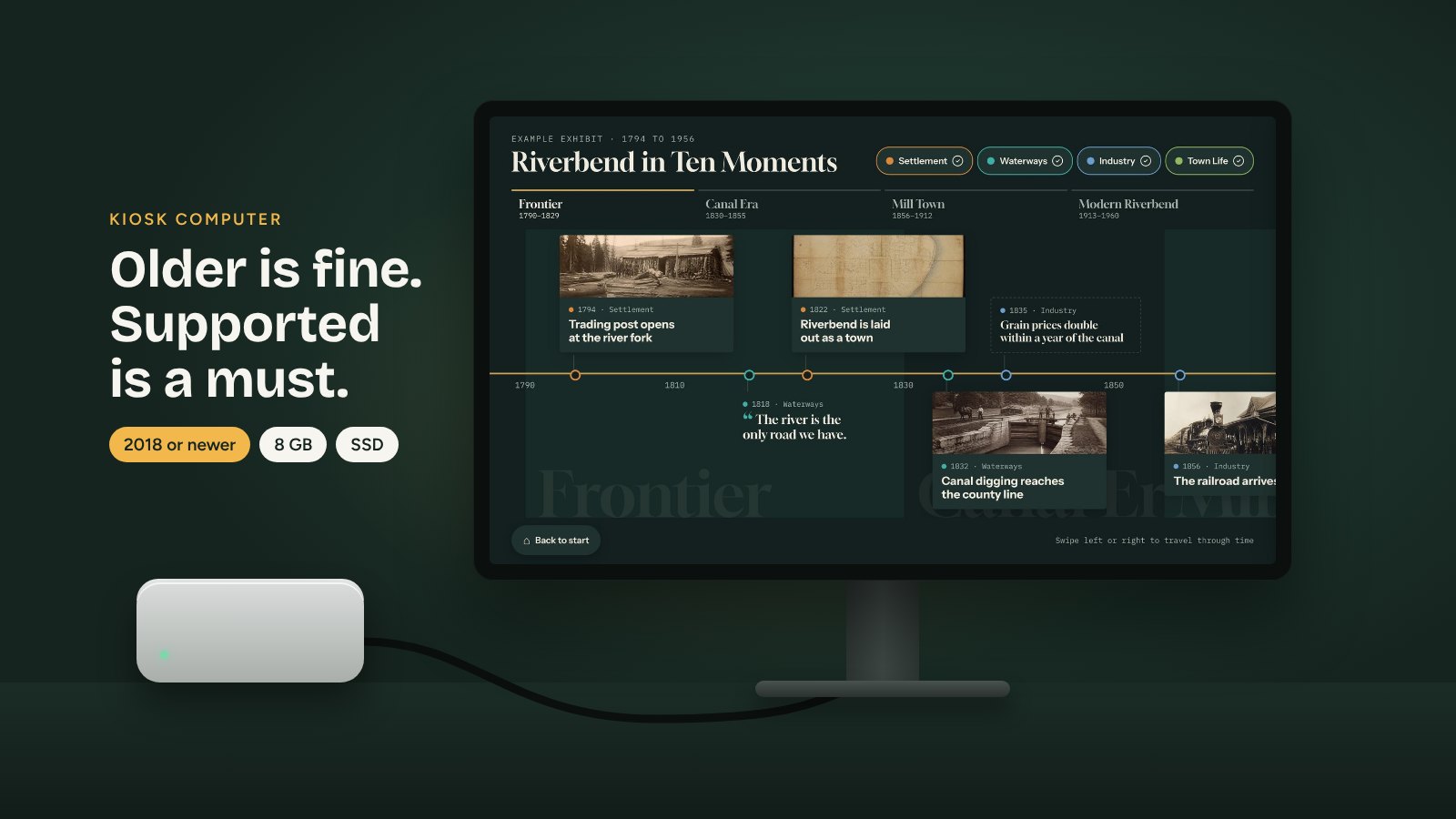
If you have a spare computer in a closet, there’s a good chance it can run your touchscreen exhibit. Tellcase plays in a web browser, and the interactive itself is small. In our own tests, the code behind a 52-card timeline with a photo on every card used under 2 MB of memory, and its frame rate barely changed when we slowed the processor to a tenth of its speed.
So the honest answer is: you don’t need a new computer. You need a supported one. Here’s where that line falls, and how to check the computer you already have.
What actually needs the computer
The interactive is light. These four things are what decide whether a computer is up to the job:
- A current, supported browser. Kiosks run in Google Chrome. Chrome now needs macOS 13 Ventura or later on a Mac, and Windows 10 or 11 on a PC. When a computer can’t run a current Chrome, it stops getting browser security fixes.
- Security updates for the operating system. A kiosk sits in a public space and usually on your network. It should still get updates from Apple or Microsoft.
- The screen. Drawing a 4K screen means four times as many pixels as 1080p. Our tests showed that’s where an older computer’s graphics, not its processor, become the limit.
- Your photos and videos. Videos need smooth playback and storage space. An offline package carries every file on the computer’s own drive.
The specs
| Minimum | Recommended | |
|---|---|---|
| Mac | Mac mini (2018) or newer, on macOS 13 Ventura or later | Mac mini with Apple silicon (M1, 2020) or newer |
| Windows | A PC that can run Windows 11, usually 2018 or newer | Windows 11 mini PC with Intel Core 11th gen or AMD Ryzen 5000 or newer |
| Memory | 8 GB | 8 GB, or 16 GB for 4K screens and video-heavy interactives |
| Storage | Solid-state drive (SSD) with 20 GB free, plus room for your videos | 256 GB SSD |
| Screen | 1080p (HD) | 1080p or 4K |
| Good for | HD screens, photos, and HD video | 4K screens, lots of video, all-day busy use |
For video, upload MP4 files (H.264) at 1080p and 30 frames a second. Nearly every computer from the last ten years can play them smoothly without working hard, and Tellcase checks each video when you upload it. Our video guide shows how to convert any video for free.
Good older computers to look for
A used Mac mini with Apple silicon. The M1 Mac mini from 2020 is small, silent, sips power, and still runs the newest macOS. It’s one of the best values for a kiosk, and it handles 4K screens.
A 2018 Intel Mac mini. It works, but it can’t update past macOS 15 Sequoia, and Apple’s newest macOS no longer supports Intel Macs. Expect its security updates to end well before an Apple silicon model’s. Fine for now, but not for the long haul.
An off-lease business mini PC. Companies replace office computers on a schedule, and the small “tiny” or “micro” models often show up refurbished for much less than new. Look at lines like Dell OptiPlex Micro, HP EliteDesk or ProDesk Mini, and Lenovo ThinkCentre Tiny. Pick one with an Intel Core 8th gen or AMD Ryzen 2000 processor or newer, so it can run Windows 11. They’re about the size of a hardcover book and mount behind a screen.
What to skip
- PCs that can’t run Windows 11. Windows 10 is past the end of support. Microsoft offers extra security updates, but they’re free only for home use. Organizations pay per computer, and the price doubles each year. That wipes out the savings.
- Macs older than 2018. They can’t run macOS 13 Ventura, so current Chrome won’t install.
- Spinning hard drives. If an older PC still has one, swap in an SSD. It’s an inexpensive upgrade that makes startup and loading far faster, and it has no moving parts to wear out.
- Old laptops, mostly. A laptop plugged in around the clock keeps its battery full and warm, which wears it out and can make it swell. A mini PC or desktop avoids the problem. If you use a laptop anyway, turn on its battery charge limit if it has one.
- Anything loud or hot. If the fan roars at idle, it’ll roar in your gallery. Clean out the dust or pick another machine.
How to check the computer you have
On a Mac: open the Apple menu and choose About This Mac. You’ll see the model and year (like “Mac mini, 2018”) and the macOS version. If it says macOS 13 Ventura or later, you’re in range.
On a Windows PC: download Microsoft’s free PC Health Check app and click Check now. It tells you whether the PC can run Windows 11. Then open Settings > System > About to see the memory (installed RAM) and processor.
Then test Chrome: install Google Chrome, open its menu (the three dots), and choose Help > About Google Chrome. It should say Chrome is up to date.
Also check the ports. You’ll want an HDMI (or DisplayPort) output for the screen and a free USB port for the touch cable.
Get it ready
- Start fresh. Back up anything you need, then reset the computer or reinstall the operating system. A kiosk shouldn’t carry old files or old accounts.
- Install every update, then install Chrome.
- Clean out the dust and make sure the fan is quiet.
- Turn on start after power failure in macOS Energy settings or the PC’s BIOS, so a power blip doesn’t leave a dark screen.
- Follow our kiosk setup guide to make a kiosk user that signs in by itself and opens Tellcase full screen.
- Play your real interactive for a full day before you open, videos and all. If it stays smooth and quiet, it’s ready.
When to buy new instead
Reusing a computer makes the most sense for one or two HD screens in a lobby, classroom, or booth. Buy new (or newer) when:
- The screen is 4K, a touch table, or a video wall
- The interactive leans on lots of video
- Your IT team needs a warranty or a standard model they already support
- The kiosk needs to run for five years or more without a hardware swap
Either way, your interactive doesn’t change. Build it once in Tellcase, and it plays the same on a reused office PC or a brand-new Mac mini. For the rest of the setup, from screens to mounts, see what you need to run a touchscreen kiosk.
Quick answers
What are the minimum specs for a Tellcase kiosk computer?
A Mac mini from 2018 or later on macOS 13 Ventura or newer, or a PC that can run Windows 11. Give it 8 GB of memory and a solid-state drive with at least 20 GB free plus room for your videos. That handles a 1080p screen with photos and HD video.
Can I use an old Windows 10 PC as a kiosk?
We don't recommend it. Windows 10 is past the end of support, and Microsoft's free extra security updates are for home use only. Organizations pay per computer, and the price doubles each year. If the PC can't run Windows 11, it isn't a money saver for a public screen.
Is a used Mac mini good for a kiosk?
Yes. A used Mac mini with Apple silicon (M1, from 2020, or newer) is small, silent, and runs the current macOS, which makes it one of the best values for a kiosk. A 2018 Intel Mac mini also works, but it can't update past macOS 15 Sequoia, so plan to replace it sooner.
Can I use an old laptop as a kiosk?
It can work, but a desktop or mini PC is the safer choice. A laptop plugged in all day, every day keeps its battery full and warm, which wears it out and can make it swell. If you do use one, turn on the maker's battery charge limit if it has one, and check the battery every few months.