
Can an iPad be a touchscreen kiosk? Yes, for small screens. Here's how
How to turn an iPad into a locked touchscreen kiosk for a counter, front desk, or trade show table, with Guided Access and no extra apps, plus when a bigger screen is the better choice.
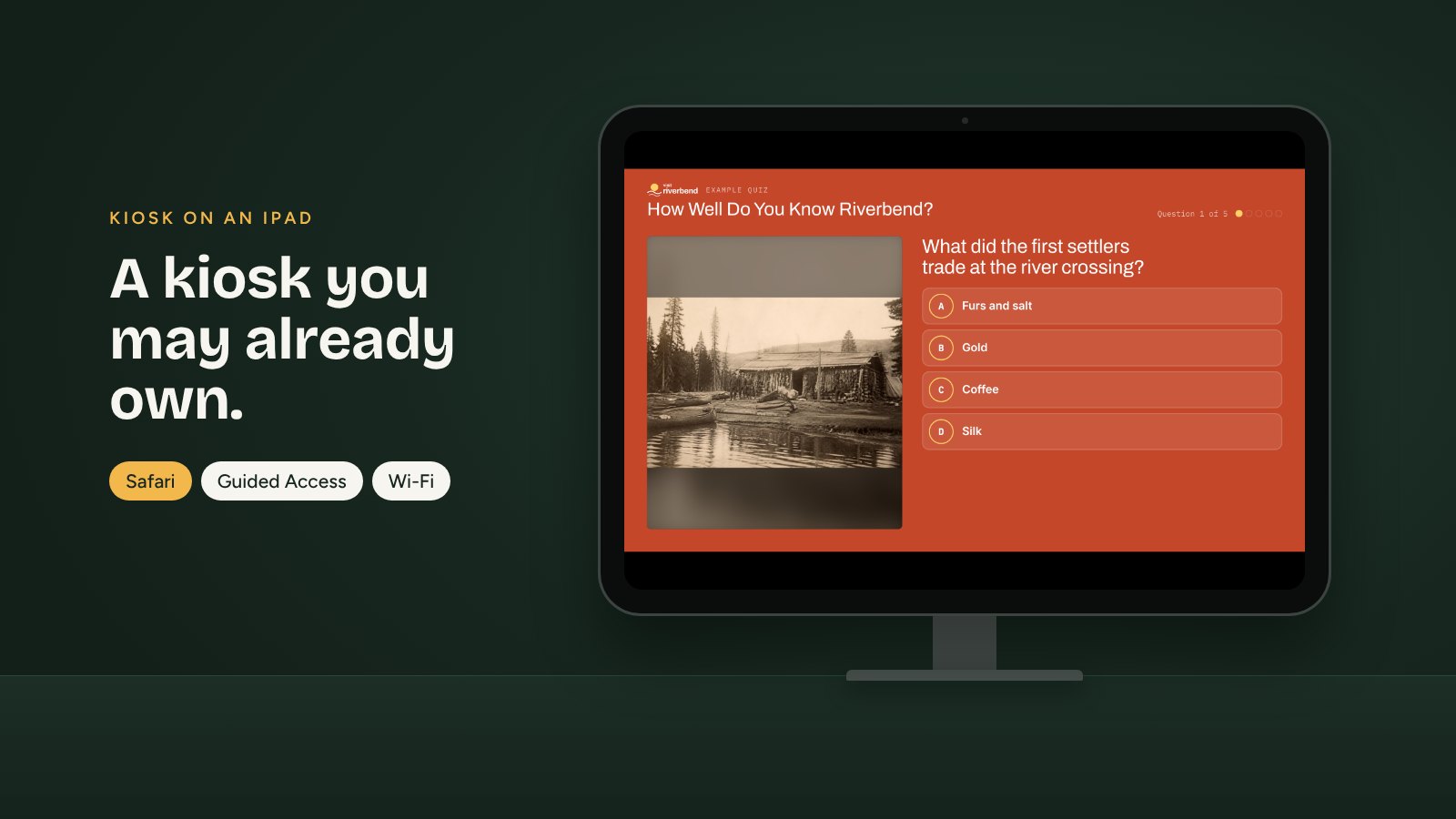
If you have an iPad, you may already own a touchscreen kiosk. Tellcase plays in a web browser, so an iPad can run your interactive with no extra apps, and Apple builds in the one thing a kiosk needs most: a way to keep visitors from leaving.
It’s not the right screen for every space. Here’s where an iPad shines, where it doesn’t, and how to set one up in about ten minutes.
Where an iPad makes sense
An iPad is a small, personal screen. It works best where one person stands close and taps:
- Trade show tables and counters. A quiz, a prize wheel, or a product showcase on a stand at the front of the booth.
- Front desks and lobbies. A short story of your company or a “how we got here” timeline next to the sign-in book.
- A label beside one object. In a museum case or a small gallery, an iPad can tell the story behind a single artifact.
- Classrooms and libraries. A school honor wall or a local history quiz on a cart that moves from room to room.
It’s quiet, it’s light, and it doesn’t need a separate computer or touch driver.
Where a bigger screen is better
- Groups. If several people gather around at once, they need a 32-inch screen or larger. That means a computer or a BrightSign player with a touchscreen.
- No internet. An iPad pairs as a connected kiosk and needs Wi-Fi. For a screen that never goes online, use an offline package on a Mac, a Windows PC, or a BrightSign player.
- All day, every day, for years. An iPad runs on a battery that stays plugged in. For a permanent exhibit, a mini PC or BrightSign player behind a commercial screen holds up better.
What you need
- An iPad that still gets iPadOS updates. Check in Settings > General > Software Update.
- A stand or enclosure that locks to the table or floor and hides the charging cable. Staff still need to reach the top button to unlock Guided Access, so pick one with a key or an opening for it.
- Power to the stand, so the iPad stays charged.
- Wi-Fi where the kiosk lives.
- A Tellcase interactive and a kiosk added under Kiosks in the editor.
Set it up in five steps
Our kiosk setup guide has every tap. In short:
- Pair it. In the editor, go to Kiosks, click Create New, pick the interactive, and save to get a six-digit code. On the iPad, open Safari, go to app.tellcase.com/pair, and enter the code.
- Add it to the Home Screen. Tap Share, then Add to Home Screen. Open the new Tellcase icon and the interactive fills the screen with no address bar.
- Turn on Guided Access. In Settings > Accessibility > Guided Access, turn it on and set a passcode. Set Display Auto-Lock to Never so the screen stays on.
- Lock it to Tellcase. Open the Tellcase icon, press the top button three times, and tap Start.
- Test it like a visitor. Play the interactive, wait for it to return to the welcome screen on its own, and try to swipe out. It should stay put.
To unlock it later, press the top button three times and enter the passcode.
Good to know
- Changes show up on their own. When you publish, the iPad picks up the new version within a few minutes, and waits until nobody is using it.
- Accessibility works too. The visitor Accessibility button, with larger text and high contrast, works on iPad like on any kiosk. See our accessibility checklist for the rest.
- The Wi-Fi and battery bar stays. iPadOS shows the small status bar at the top of every Home Screen web app. Everything else is your interactive.
- After a restart, start it again. If the iPad restarts after an update or a dead battery, open the Tellcase icon and start Guided Access again. Turning off automatic iPadOS updates, or installing them after hours, keeps that rare.
- Managing lots of iPads? IT teams that use device management software can lock iPads to a single app for a whole fleet. Ask yours what they support.
Whichever screen you choose, the interactive doesn’t change. Build it once in Tellcase and it plays on an iPad at the front desk, a Mac mini in the gallery, and a BrightSign player at the trade show. For bigger setups, see what you need to run a touchscreen kiosk.
Quick answers
Can I use an iPad as a Tellcase kiosk?
Yes. Pair the iPad in Safari with the code from Kiosks in the editor, add it to the Home Screen so it opens full screen, and lock it to Tellcase with Guided Access, which is built into every iPad. You don't need to install an app.
Does an iPad kiosk work without the internet?
An iPad needs Wi-Fi to pair and to pick up changes you publish. There's no offline package for iPad, so for a screen that never goes online, use a Mac, a Windows PC, or a BrightSign player instead.
How do I stop visitors from leaving the kiosk on an iPad?
Turn on Guided Access in Settings > Accessibility, set a passcode, then press the top button (or Home button) three times while Tellcase is open and tap Start. Visitors can't leave until someone enters the passcode.
Does an iPad count as a kiosk on my plan?
Yes. A paired iPad is a kiosk, the same as a computer with a touchscreen. Your website and offline packages never count.