
Waiting room TV ideas: what to show and how to keep it fresh
What to put on a waiting room or lobby TV so people actually look at it: 10 slide ideas, how long each slide should stay up, and how to update the screen from a browser.
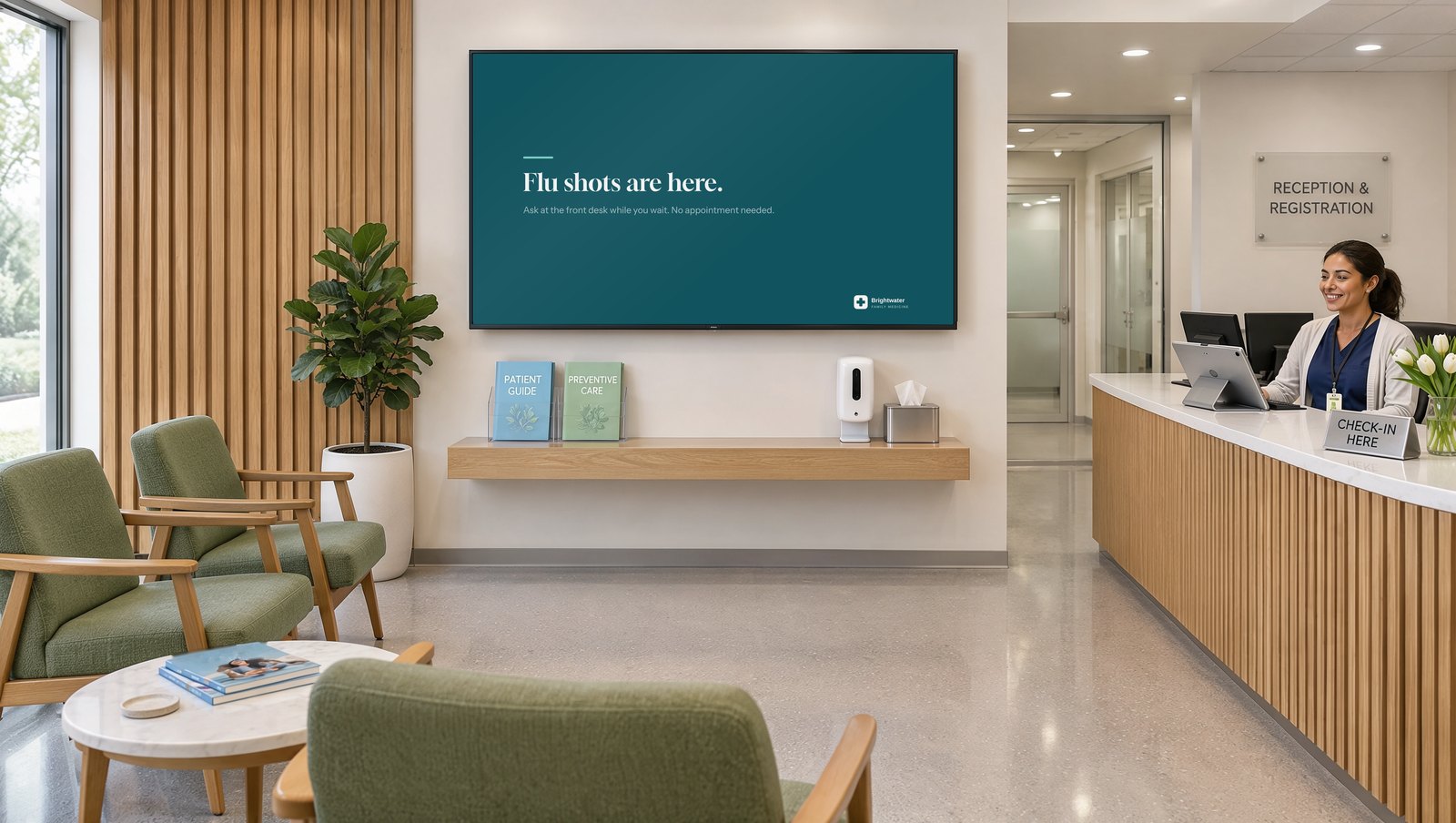
Most waiting room TVs end up in one of two places: a cable news channel nobody chose, or a slideshow somebody made two years ago that still wishes everyone a happy spring. Neither helps the people sitting there, and neither helps you.
A good waiting room screen is short, useful, and current. It answers questions before people get to the desk, tells them about services they didn’t know you offer, and makes the wait feel a little shorter. This guide covers what to show, how to pace it, and how to keep it up to date without anyone fiddling with the TV. It’s written with doctor’s and dentist’s offices in mind, but the same ideas work in a bank lobby, a front office, or a school hallway.
What makes a waiting room screen work
People in a waiting room glance up, read a line or two, and look back at their phone. They might see the screen five times in ten minutes, or only once. So:
- One idea per slide. A headline and a sentence or two. If it needs a paragraph, it belongs on a handout.
- Big type. Someone across the room should be able to read the headline without squinting.
- About your place. The best slides are things only you can say: your services, your team, your hours, your news.
- Current. One out-of-date slide teaches everyone to stop looking.
10 waiting room TV ideas
- Seasonal reminders. Flu shots, back-to-school physicals, sunscreen in summer. Swap them as the season changes.
- Services people don’t know about. Most patients only know the one thing they came in for. A slide per service, like lab work on site or telehealth visits, answers “Do you do that here?”
- How to use your patient portal. Three short steps on one slide saves a phone call later.
- Meet the team. A photo and one line per person: name, role, and something human. It turns “the new nurse” into a person.
- Office news. New hours, a new provider, a holiday closure, parking changes during construction.
- What to bring next time. Insurance card, medication list, forms you can fill out at home.
- A quick tip. One practical health or care tip from your own staff, in plain words.
- Your history. How long you’ve been in the community, an old photo of the first office, a milestone year.
- Thank-yous. Recognize a community partner, a volunteer, or a staff anniversary.
- A welcome slide. Your logo and a friendly line. Put it first, so the loop always starts with a hello.
Keep anything about individual patients off the screen. No names, no appointment times, no “now seeing” lists.
How long each slide should stay up
Eight to twelve seconds is the sweet spot for most slides. That’s long enough to read a headline and a sentence, and short enough that the screen feels alive.
- Give text-heavy slides a little longer, or better, cut the text.
- Eight to fifteen slides makes a good loop. Shorter than that and people who wait 20 minutes see the same three slides over and over. Much longer and today’s important slide rarely comes up.
- Put the most important slide in twice, once near the start and once in the middle.
- Fade or straight cut? A soft fade feels calmer, which suits a waiting room. A cut feels snappier in a busy lobby.
Keep the sound off
A TV talking over the front desk gets turned off by lunchtime. People are listening for their name, and staff need to hear each other. Plan every slide to work silently. If you use video, choose clips that make sense without sound, or burn the captions into the video.
Two ways to make the slides
Design them yourself. If someone on your team already uses Canva or PowerPoint, design each slide at 1920 by 1080 pixels (or 1080 by 1920 for a portrait screen). Download each page as a PNG, or as an MP4 for a slide with motion. In Tellcase, add the file to a card and set the card type to Full-screen slide. It plays edge to edge, exactly as designed.
Let the template lay them out. No design tool needed. Type a headline and a sentence, pick your colors once, and the Loop template turns each card into a finished slide:
- A Fact or Short entry card becomes a big type slide, like the flu shot slide in the photo at the top of this page.
- A Quote card becomes a large pull quote with the name underneath, good for a patient thank-you or a staff motto.
- A Photo card puts the picture beside the headline and text, good for team introductions.
Your logo sits in the corner of every slide Tellcase lays out. Long text shrinks to fit, and the same cards work on landscape and portrait screens. You can mix both kinds of slides in one loop. Most offices end up with a few polished Canva slides and a lot of quick typed ones.
Keep it current without touching the TV
The reason most waiting room slideshows go stale is that updating them means a USB stick, a ladder, or a call to whoever set it up. A Loop updates from a browser instead:
- Edit a slide in your Tellcase account, from a computer or even a phone.
- Click Publish.
- The screen picks it up within a few minutes on its own.
Put a ten-minute review on the calendar once a month. Remove anything past its date, add what’s coming up next month, and move the most important slide to the front.
What you need on the wall
- A TV or commercial display. Since nobody touches it, it doesn’t need to be a touchscreen. Mount it where people can see it from their seats without craning, and away from the glare of a window.
- A small computer to play it. A Mac mini, a small Windows PC, or a BrightSign player tucked behind the screen. The kiosk setup guide walks through each one.
- Internet, ideally. A connected screen gets your updates within minutes. If a screen has no internet, it can play from an offline package you copy over by USB.
Each screen that plays Tellcase counts as one of your plan’s kiosks, whatever it shows. Every plan includes unlimited interactives, so a Loop costs nothing extra to build.
Try it
See the Loop template with its sample lobby loop, or browse lobby touchscreen ideas if you also have a screen people can touch. Plans start at $49 a month, with a 14-day free trial and no card needed, so you can build your first loop and see it on your own TV before you pay anything.
Quick answers
What should I put on a waiting room TV?
Short, useful slides about your own place. Seasonal reminders, services people may not know you offer, how to use the patient portal, team introductions, and a few friendly local or historical facts. Keep each slide to a headline and a sentence or two.
How long should each slide stay on screen?
Eight to twelve seconds works for most slides. Give a slide with more text a little longer. In Tellcase you set the seconds per slide from 4 to 120, and a video always plays to its end before the next slide.
Can I use slides I designed in Canva?
Yes. Design at 1920 by 1080 pixels, or 1080 by 1920 for a portrait screen, and download each page as a PNG, or as an MP4 for motion. In Tellcase, add it to a card and set the card type to Full-screen slide. It fills the screen edge to edge.
Does a waiting room TV need sound?
Usually not. People are waiting for their name to be called, and a TV talking over the front desk gets turned off. Tellcase plays videos on a Loop with the sound off, so put any words that matter on the slide or in burned-in captions.
How do I update the TV without walking over to it?
Edit the slide in your Tellcase account from any browser, even a phone, and click Publish. A connected screen picks up the change within a few minutes, with nobody touching the TV.