
How to find out where your visitors come from
Five ways museums, visitor centers, and libraries learn where visitors come from, what to ask, how to keep it friendly, and how to turn it into a report.
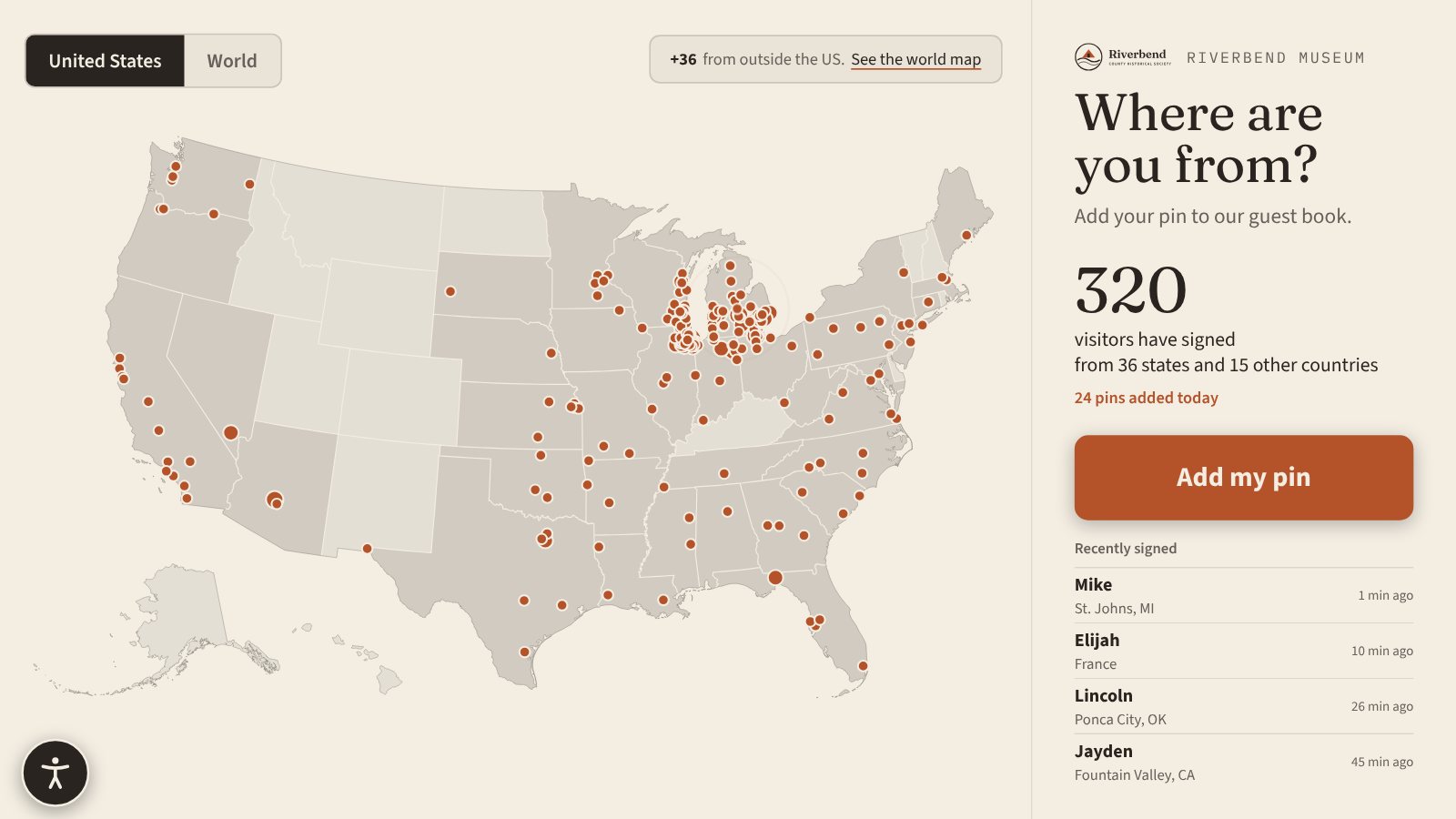
Your board asks how far people travel to see you. A grant application wants to know who you serve. Your tourism office wants to know if the billboard on the interstate is working. They’re all asking one question: where do your visitors come from?
Most small museums, visitor centers, and libraries can only guess. Here are five ways to find out, what to ask, and how to turn the answers into something you can put in a report.
Five ways to collect visitor hometowns
1. Ask at the desk
Front desk staff ask every visitor, or every group, for a ZIP code and type it into the admission system or a tally sheet.
- Good: you get nearly everyone who pays admission.
- Watch out: it slows the line on busy days, staff skip it when they’re rushed, and free-admission sites have no checkout to attach it to.
2. Use your ticketing or point-of-sale system
If you sell tickets online or at a register, many systems can ask for a ZIP code at checkout.
- Good: it’s automatic, and the data already sits in a report.
- Watch out: it only covers paying customers, and one purchase often covers a whole family or bus group.
3. Keep a paper guest book
The classic book on a stand by the door, with columns for name, town, and comments.
- Good: cheap, familiar, and people enjoy reading the entries.
- Watch out: someone has to type it all up. Handwriting is hard to read, and pages go missing.
4. Put up a push-pin map
A big map on the wall and a cup of pins. Visitors find their hometown and add one.
- Good: it’s one of the most popular things in many lobbies. Kids love it, and it starts conversations.
- Watch out: you can’t count it. By midsummer some towns are a cluster of holes, pins fall out, and international guests have nowhere to go unless you add a world map.
5. Use a digital guest book map
A touchscreen where visitors type a first name and their town, and a pin drops on a map. The screen counts entries as they come in, and staff download the list.
- Good: it keeps the fun of the push-pin map and adds a count you can trust. It works for groups and free-admission days too.
- Watch out: it needs a screen and a small computer or player, and you’ll want a way to keep rude names off the screen.
Many places combine two of these: ticketing data for paying visitors, plus a map or guest book that everyone, including school groups and free days, can join.
What to ask (and what not to)
Keep it to one or two questions. Every extra field means fewer people finish.
- Ask for a hometown or ZIP code. That’s enough to map and count. You never need a street address.
- Make the name optional. A first name makes the map feel friendly. Some people would rather skip it, and that’s fine.
- Never show last names, addresses, or emails on a public screen. If you want email sign-ups, make it a separate, optional step with a clear line about how you’ll use the address.
- Count groups fairly. Decide whether a family of five adds one pin or five, and put that in the prompt so everyone does the same.
How to get more people to join in
Where you put it matters more than what it looks like.
- Put it where everyone passes. Near the entrance catches people while they’re curious. Near the exit catches people who have time. Avoid the spot where a line forms.
- Ask the question in big letters. “Where are you from?” works because people like answering it.
- Show the results. A map that’s already filling up invites the next person to add their own pin. A running count like “visitors from 23 states this summer” helps too.
- Have staff mention it. A quick “Before you go, add your pin on the map” at the desk makes a real difference on busy days.
- Make it quick. Picking a town from a list should take a few seconds. If visitors have to spell out a whole address, they’ll walk past.
Turn hometowns into a report
Whatever method you use, aim for a spreadsheet with one row per visitor and at least a state and country column. Then a pivot table does the counting:
- In Excel: click inside your data, choose Insert > PivotTable, drag State to Rows, and drag State again to Values. It shows a count for each state.
- In Google Sheets: choose Insert > Pivot table, add State under Rows, and add State under Values summarized by COUNTA.
Do the same with Country for international visitors. A few tips for a cleaner report:
- Compare the same months each year. Summer and school-field-trip season look very different, so July against last July tells you more than July against March.
- Report “states and countries” along with the total. “Visitors from 38 states and 12 countries” is a line a board member remembers.
- Note what you can’t see. A guest book counts the people who signed it, not everyone who came in. Say so in the report, and pair it with your attendance count.
Set up a digital guest book with Tellcase
The Tellcase Guest Book is a touchscreen visitor map built for this. Visitors tap Add my pin, type a first name or skip it, and pick their town from a built-in list of US towns and ZIP codes, plus cities and countries worldwide. A pin drops on a US or world map right away.
- Start from the example. In the editor, pick the Guest Book from the list of templates. It opens with sample visitors so you can see the map fill up. Your own map starts empty.
- Pick your settings. Choose whether it opens on the US or world map, the words on the button, and whether new names wait for your OK before they show. Names always pass a word filter, and with approvals on, a name stays hidden until staff approve it, while the pin shows right away.
- Add an email step if you want one. Turn on the lead form and it becomes an optional last step. Each sign-up lands in your Leads list with the visitor’s town.
- Put it by the door. Pair a touchscreen kiosk with a six-digit code, or download an offline package. If the internet drops, new pins wait on the kiosk and send when it reconnects. It plays on a Mac mini, a Windows PC, a BrightSign player, or an iPad on a stand.
- Download your list. Every entry is listed under Guest Book in the editor. Download it as a spreadsheet with the town, state or country, coordinates, and date, ready for the pivot table above.
While nobody is signing, the screen shows how many people have signed, from how many states and countries, and who signed last. You can also embed the same map on your website, so people can add a pin before or after their visit.
See what it looks like on our visitor map page, or try the sample on the live demo.
Quick answers
What's the easiest way to track where museum visitors come from?
Ask for a ZIP code or hometown in one place every visitor passes, like the admission desk or the exit. A digital guest book map makes it something visitors want to do, and it counts the results for you.
Should we ask visitors for their ZIP code or their town?
A ZIP code is quick and precise for US visitors. A town name is friendlier and works for international guests too. A good system takes either one and puts both on the same map.
Is it OK to show visitor names on a public screen?
First names are fine for most places, as long as you filter out rude words and let people skip it. Never show last names, street addresses, or email addresses on a public screen.
How do I turn visitor hometowns into a report?
Put the entries in a spreadsheet with one row per visitor and a column for state and country, then use a pivot table to count rows by state or country. Compare the same months each year so seasons don't skew the numbers.
What is a digital guest book?
It's a touchscreen that replaces the paper sign-in book or push-pin map. Visitors add a first name and hometown, a pin appears on a map, and staff get a spreadsheet of every entry.